
Secure Remote Access to PLCs: A Guide Using IoT Gateways & RCMS
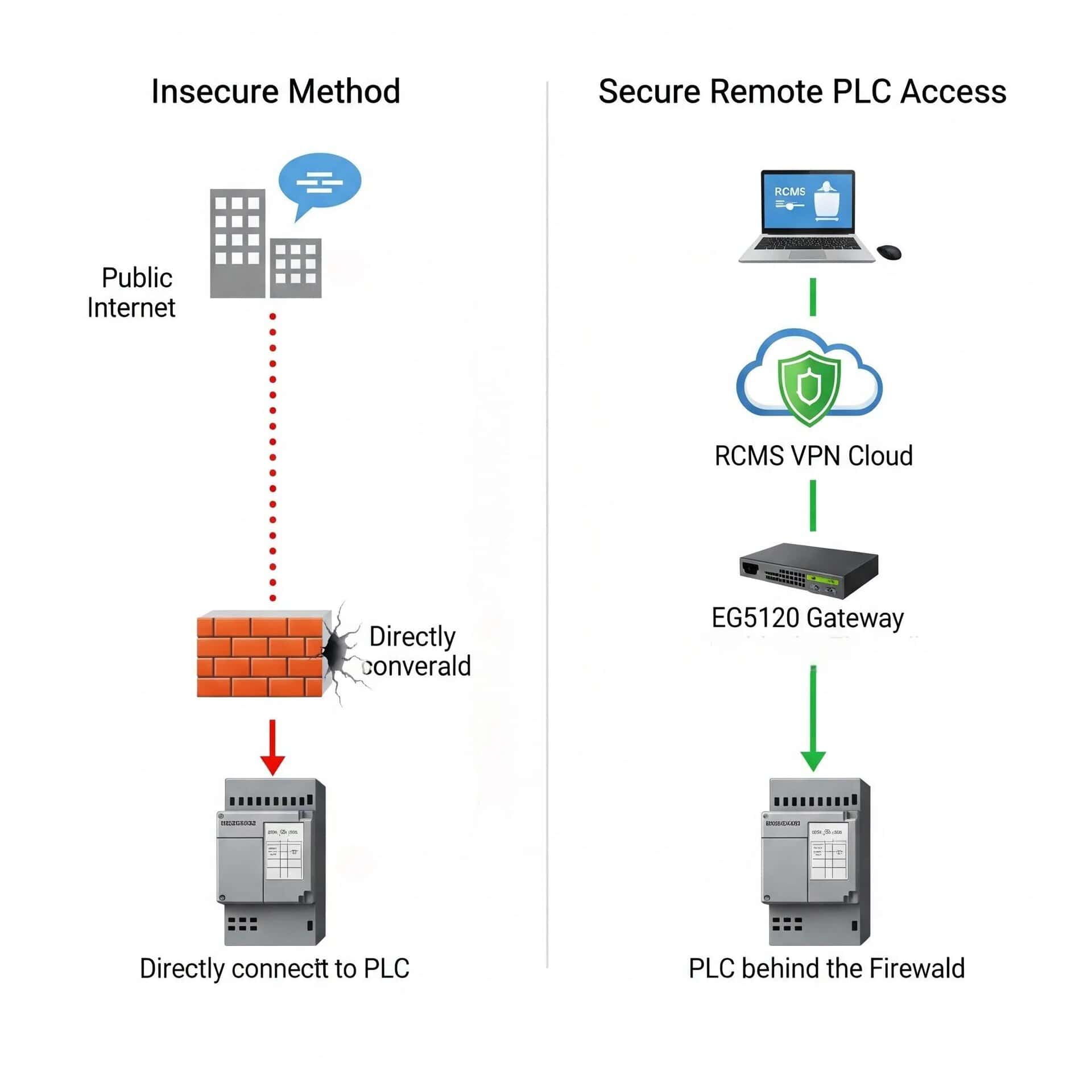
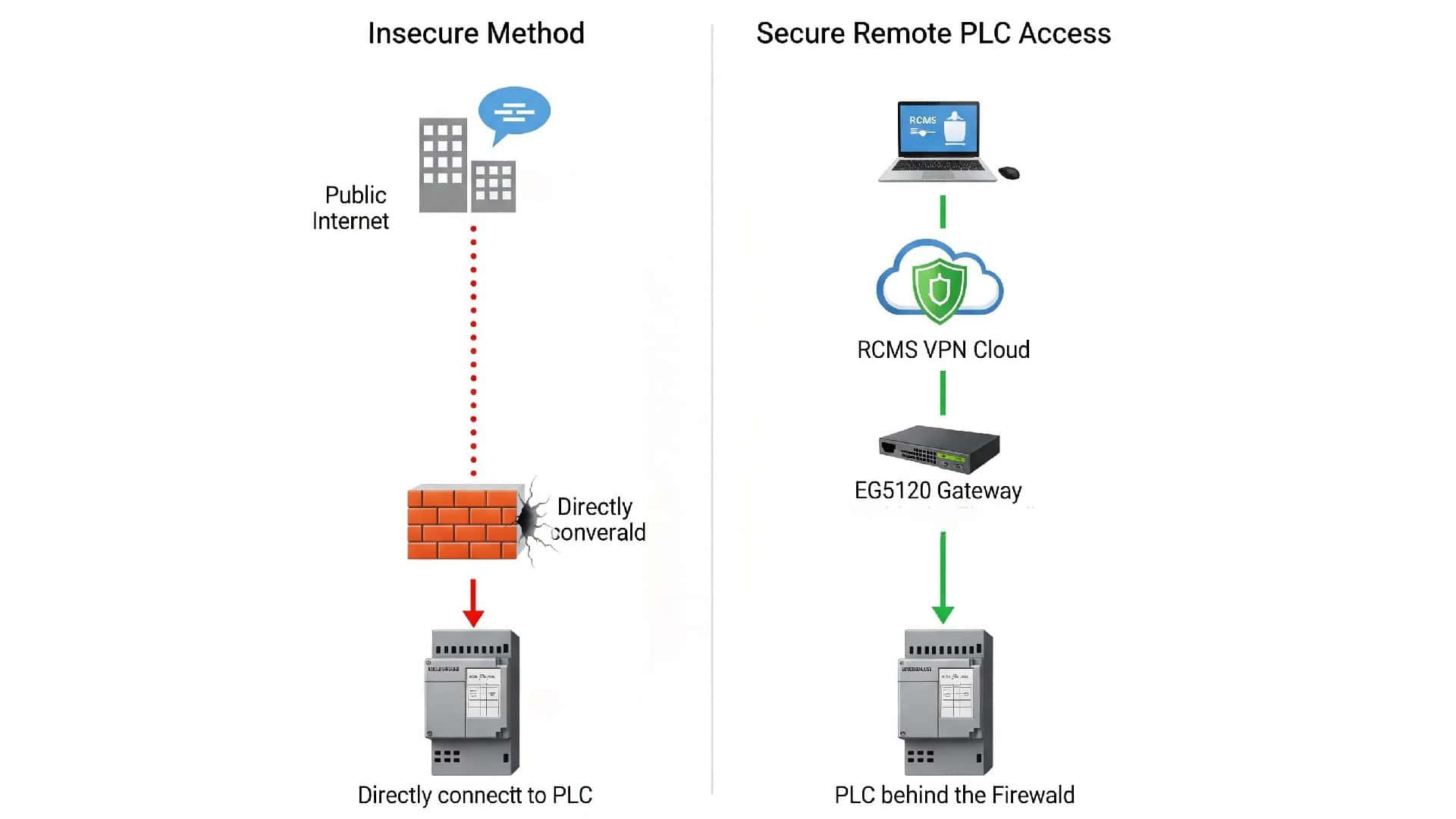
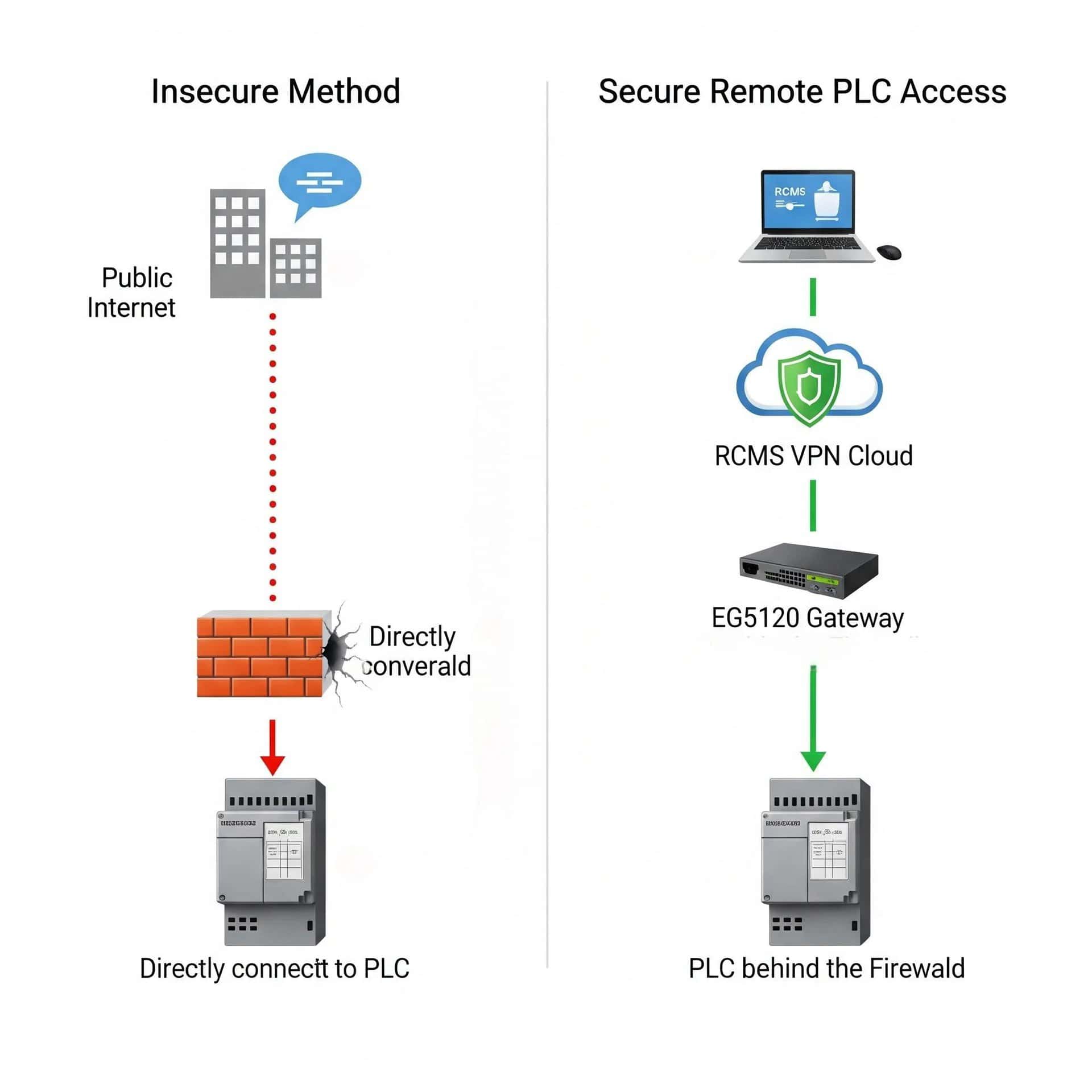
In modern industrial automation, the ability to securely access PLCs remotely is no longer just a luxury—it is essential for efficient troubleshooting, programming, and maintenance. However, the critical question remains: how do you achieve this without exposing your sensitive OT network to the risks of the internet?
This guide provides a comprehensive tutorial on doing exactly that, leveraging the Robustel EG5120 industrial gateway and the Robustel Cloud Manager Service (RCMS).
We will walk you through the entire process, from initial device setup to establishing a secure VPN tunnel. By the end of this article, you will know how to connect to your Siemens PLC from anywhere in the world, securely accessing your equipment as if you were plugged in directly on the factory floor.
The Remote Access Dilemma: Why You Need Secure Remote PLC Access
I have spoken with countless automation engineers who share the same frustration: a machine on the factory floor stops working at 2 AM, forcing the programmer to drive an hour to the site just to plug in a laptop and diagnose a simple software issue. It is inefficient, costly, and incredibly stressful.
The obvious solution is remote access, but that often opens a new can of worms. How do you provide access without punching dangerous holes in your firewall or exposing your sensitive OT network to the public internet?
The answer is not risky port forwarding or insecure desktop sharing software. The professional solution is to use a purpose-built Industrial IoT Edge Gateway to create a secure, encrypted tunnel directly to your PLC. This guide will show you exactly how to implement this secure connection, transforming how you handle remote diagnostics and maintenance.
The Solution: A Secure VPN Tunnel via RCMS (RobustVPN)
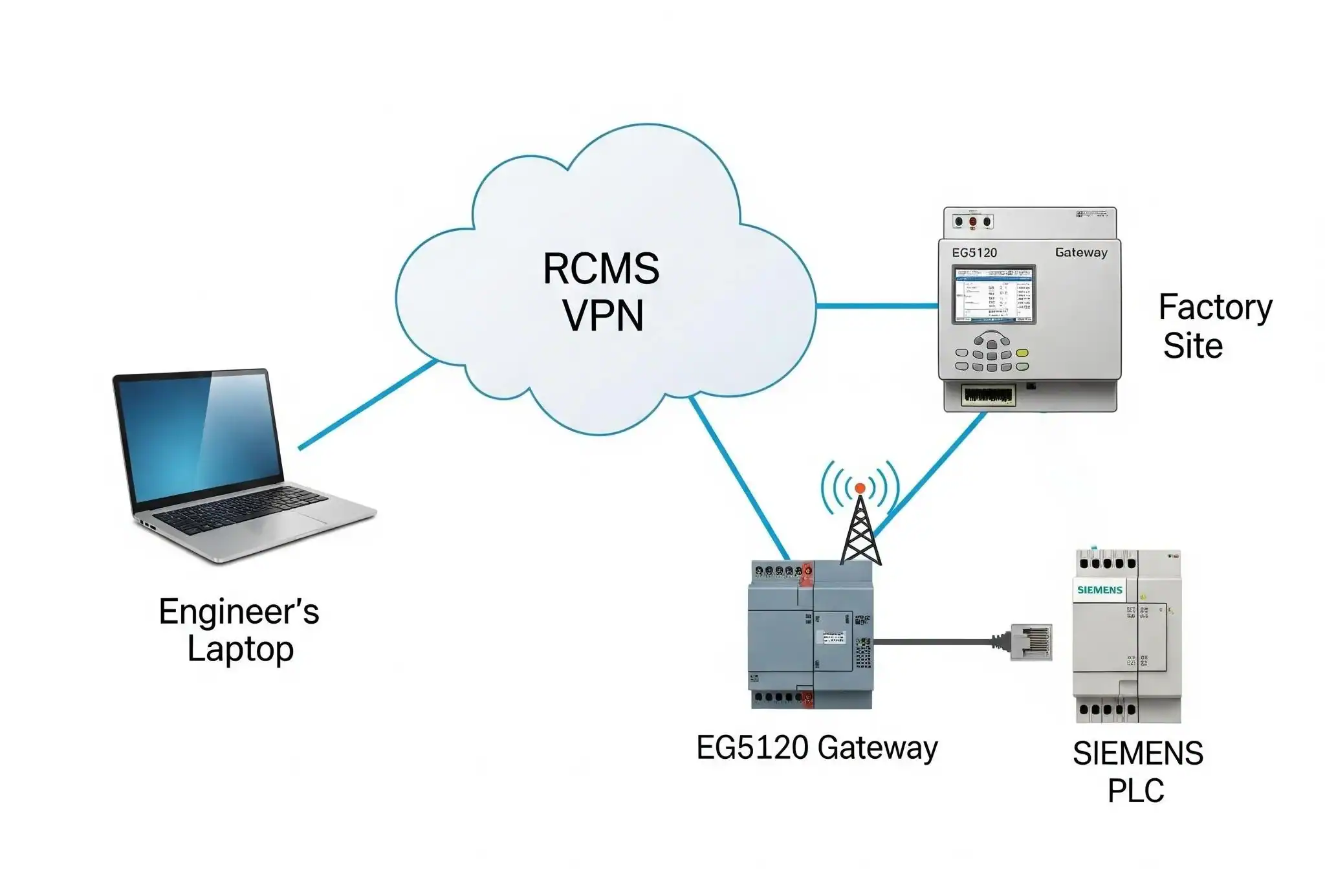
The core of this solution is to never expose your PLC directly to the internet. Instead, we use the Robustel EG5120 as a secure “gatekeeper” on the local network. We then use the Robustel Cloud Manager Service (RCMS) to create an on-demand, encrypted VPN tunnel from our engineering laptop directly to the EG5120. Because the PLC is on the same local network as the gateway, we can then access it as if we were plugged in right beside it.
This architecture has three key advantages:
Scalability: This same method can be used to manage hundreds of PLCs across different sites from a single, centralized platform.
Unmatched Security: Your PLC remains completely invisible to the public internet. All communication is protected within an encrypted VPN tunnel.
Simplified Deployment: No complex firewall configurations or public IP addresses are needed. The gateway makes an outbound connection to the cloud, which is easy to manage.
Prerequisites / What You’ll Need
Before you begin, let’s get everything ready.
- Hardware List:
- 1 x Robustel EG5120 Industrial IoT Edge Gateway
- 1 x PLC device (we’ll use a Siemens S7-200 Smart as our example)
- An active internet connection for the EG5120 (via Ethernet or a 4G SIM card)
- A Windows PC with Siemens programming software installed
- Software/Accounts:
- A valid Microsoft Account to register for RCMS.
- An active RCMS account.
- Knowledge Needed:
- Basic familiarity with your PLC’s IP address and network settings.
Step-by-Step Guide: How to Remotely Connect to a PLC
This guide will walk you through the entire process, from initial login to successfully connecting to your Siemens PLC with your engineering software.
(Note: This section’s structure is preserved for easy screenshot insertion.)
Step 1: Create Your RCMS Account
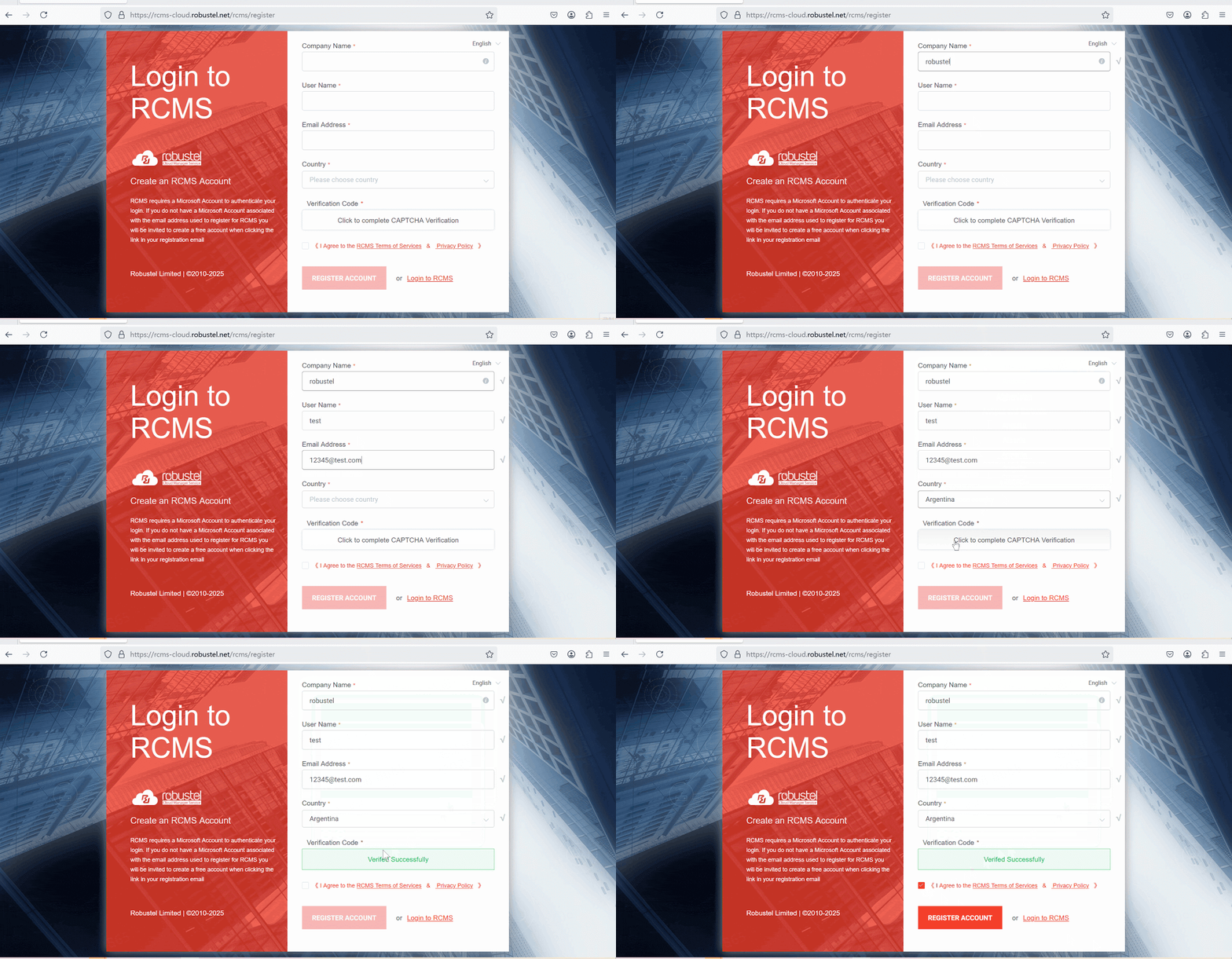
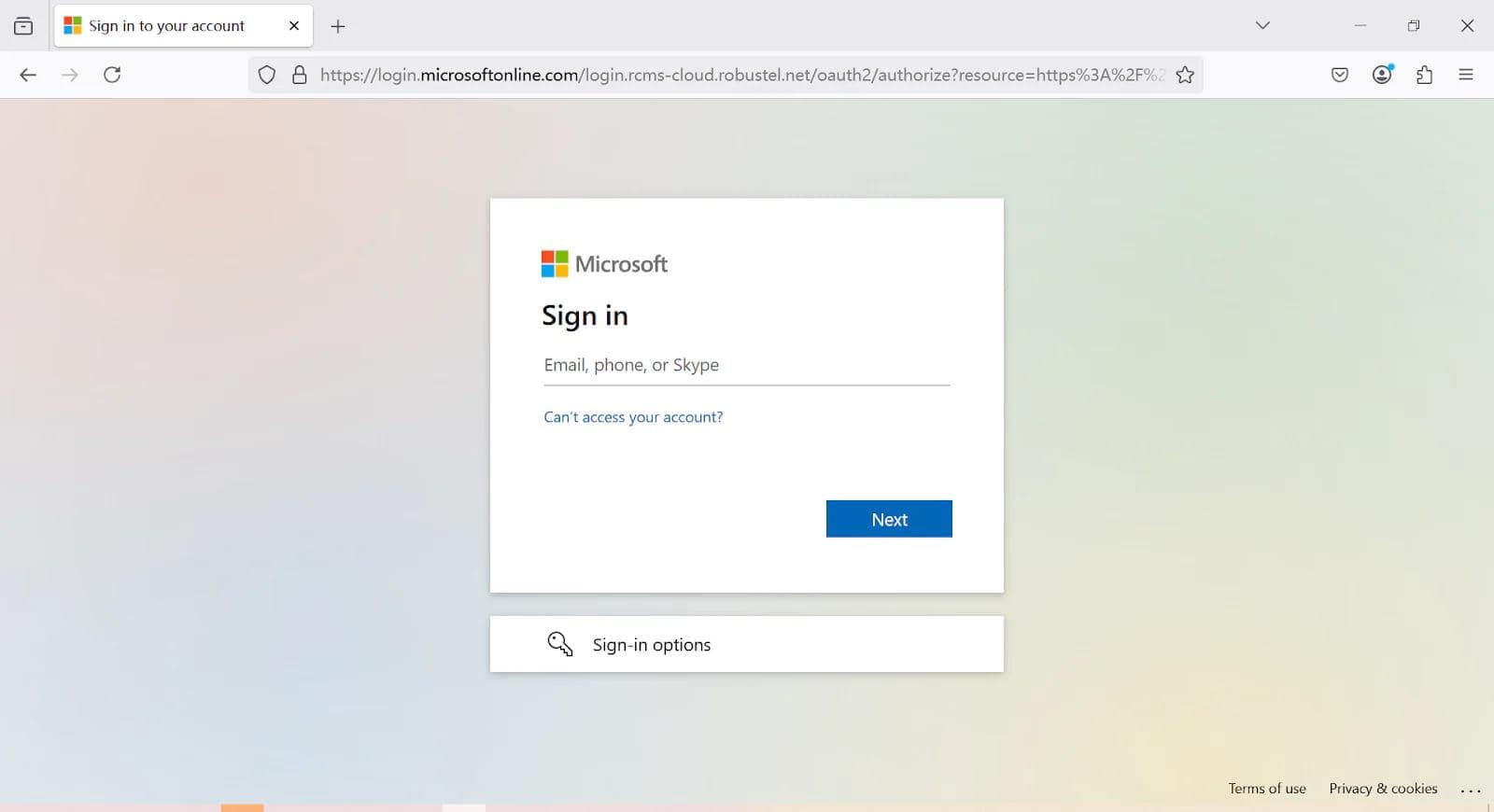
- Visit the Robustel RCMS Portal and click Register Account . Follow the prompts to register using your Microsoft account.
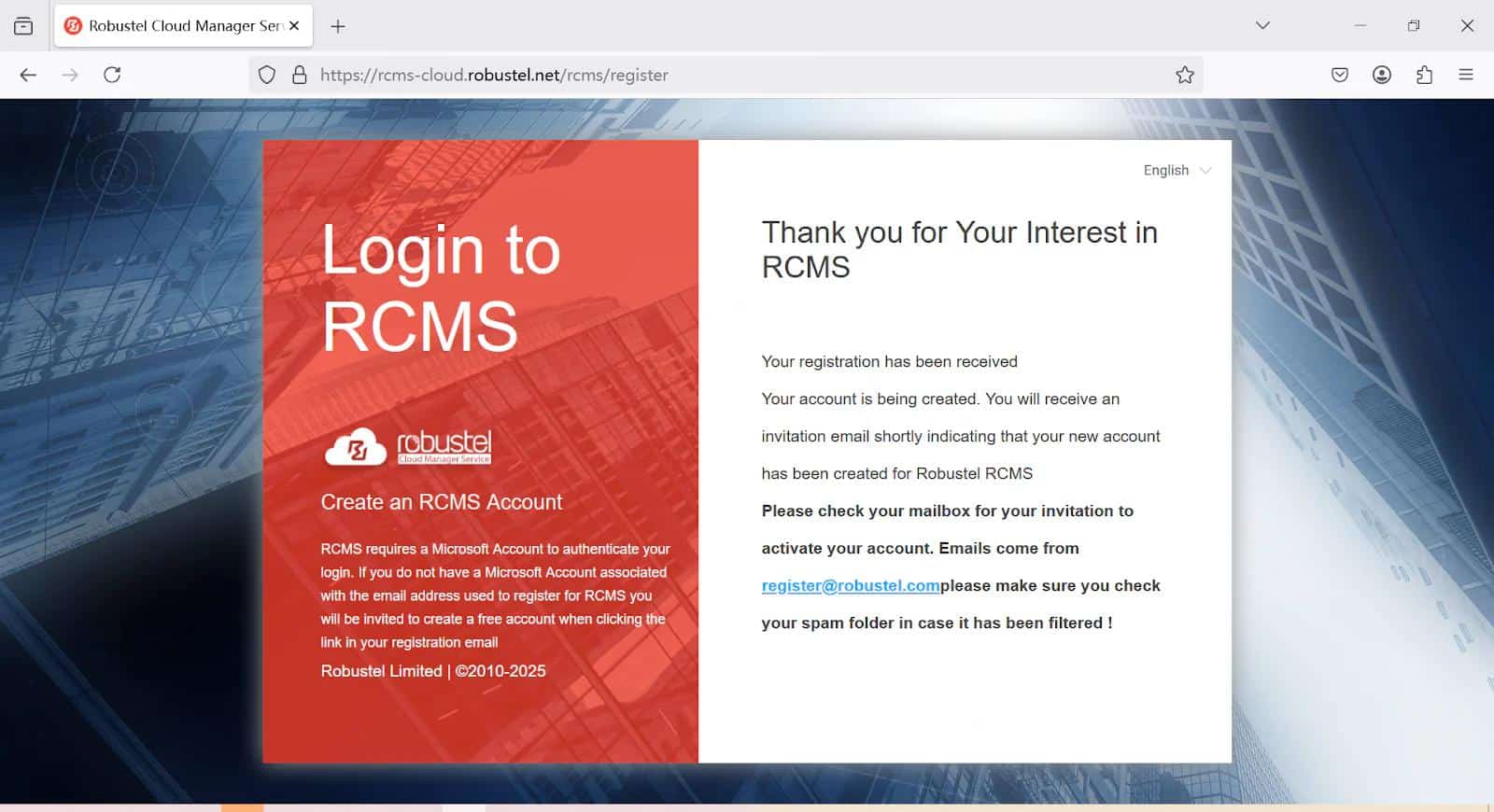
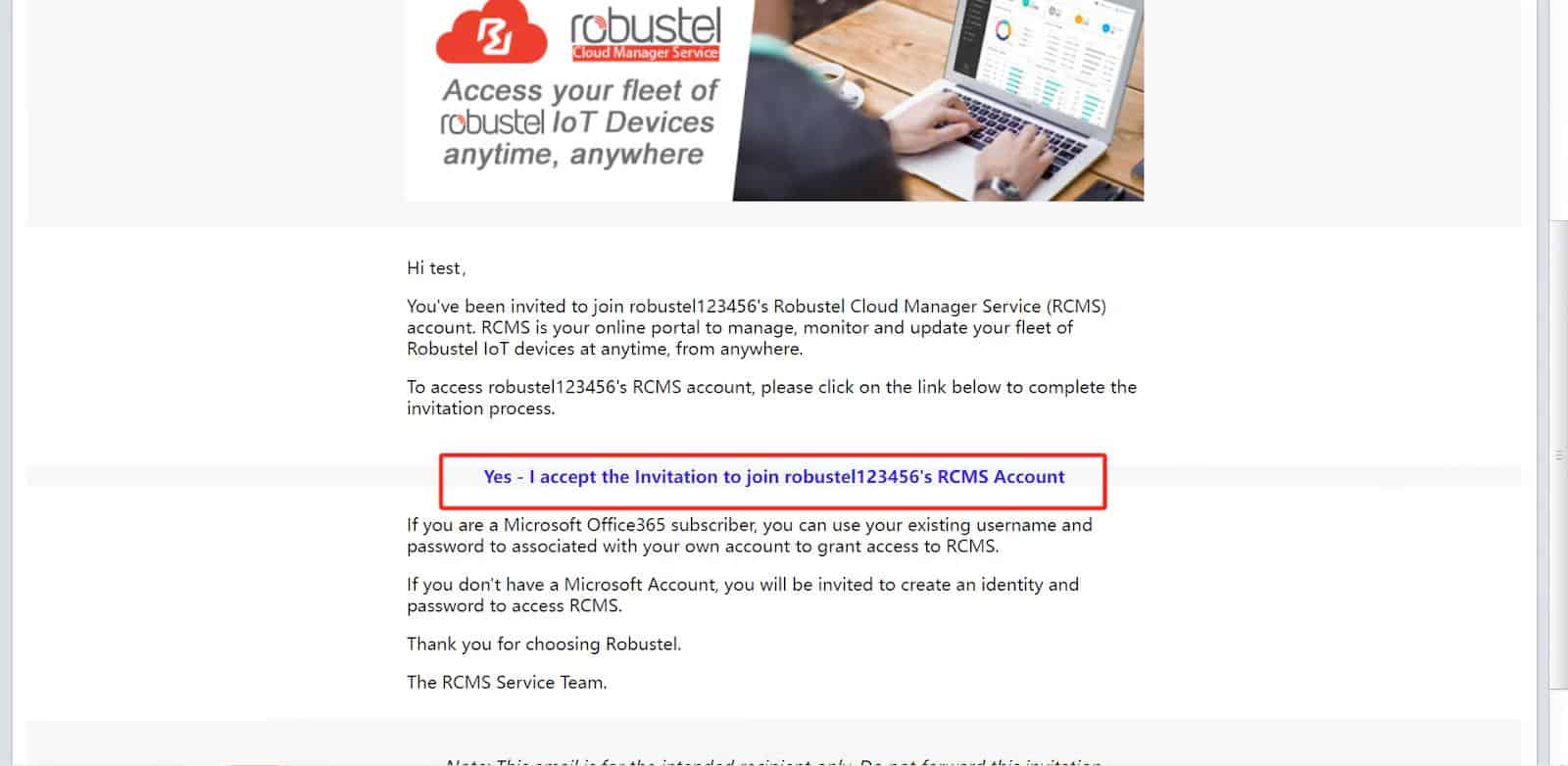
2. Confirm your registration via email and log in.
Step 2: Add the EG5120 to the RCMS Platform
- In RCMS, add your EG5120 by entering its SN and MAC address , which can be found on the device’s label.
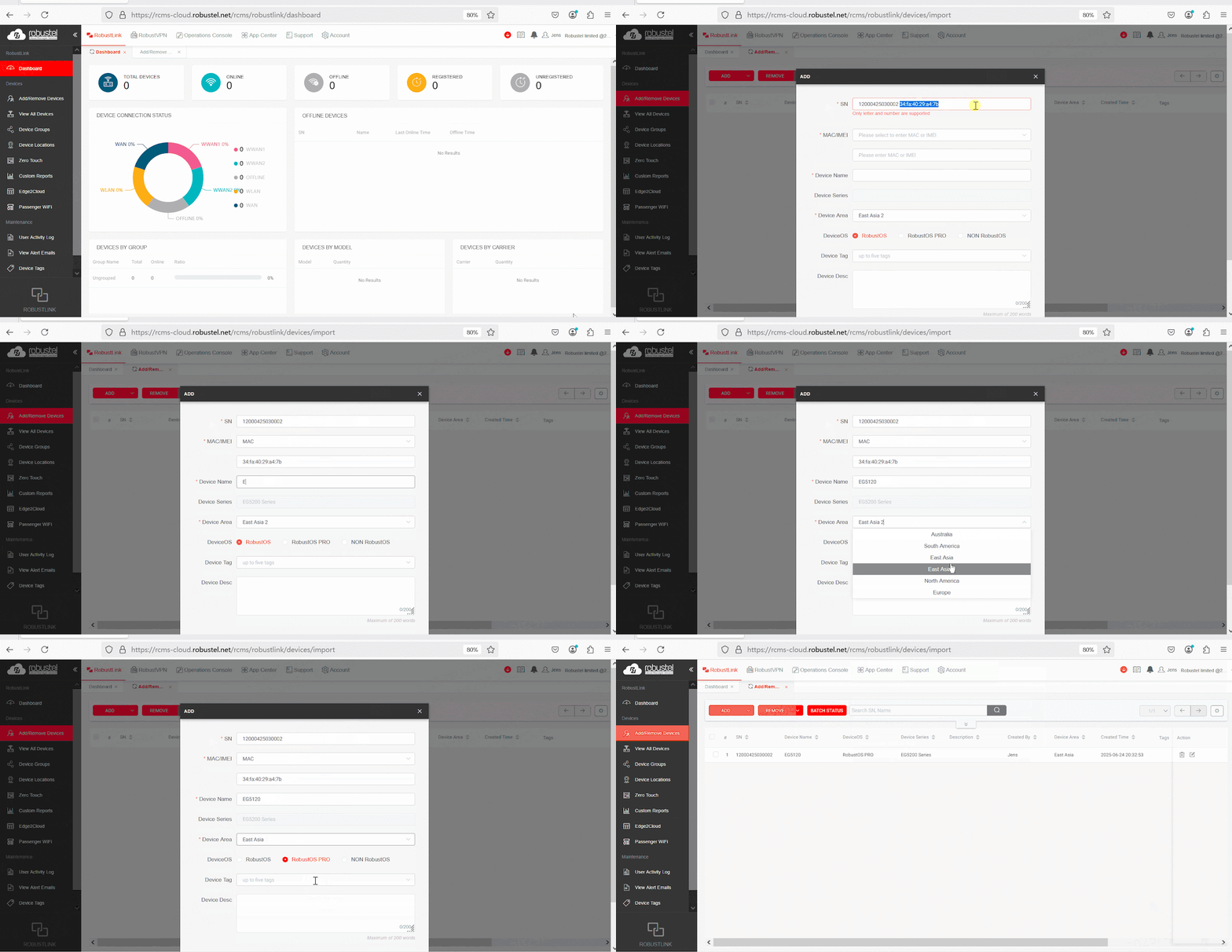
2. Power on your EG5120 and ensure it has an internet connection.
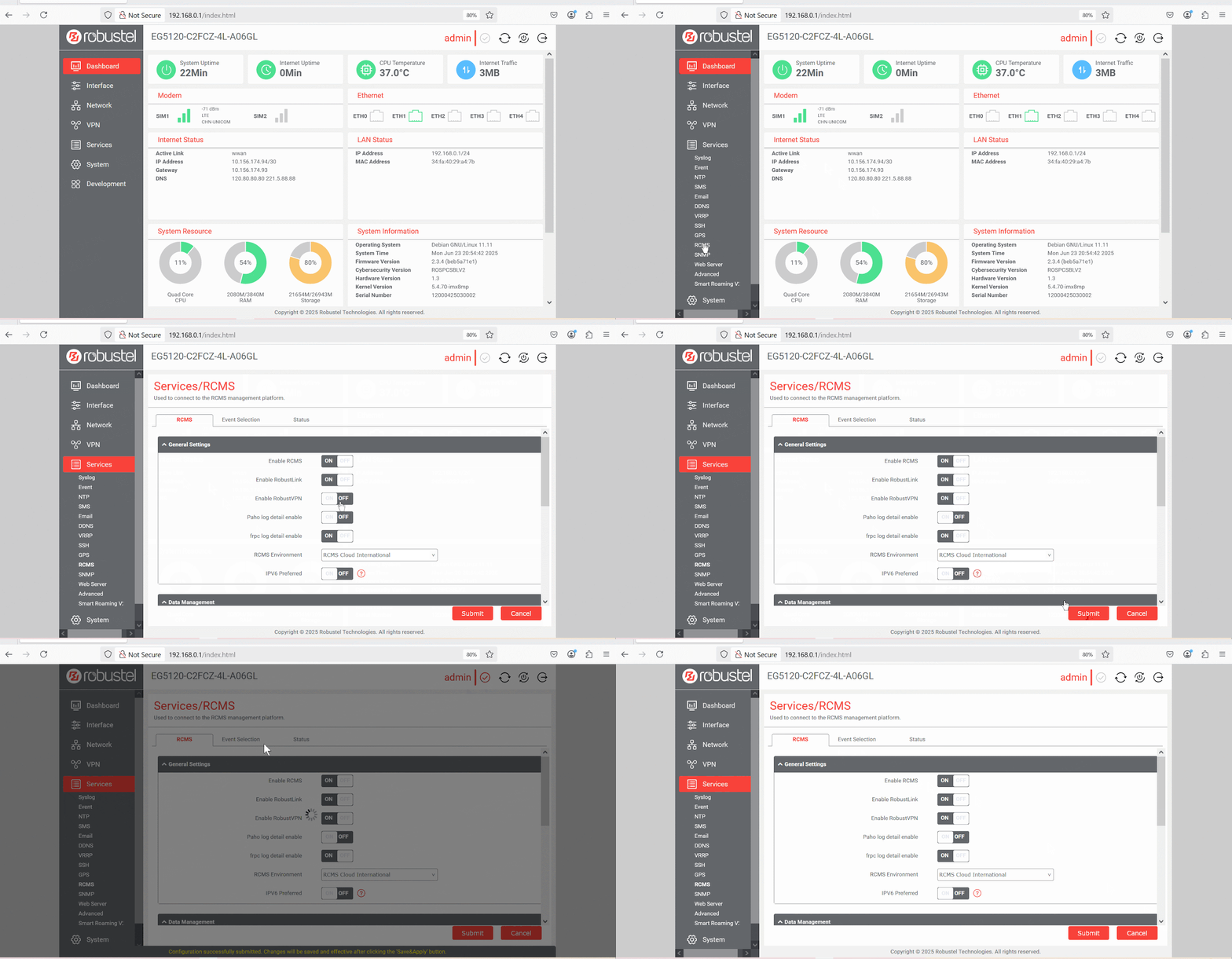
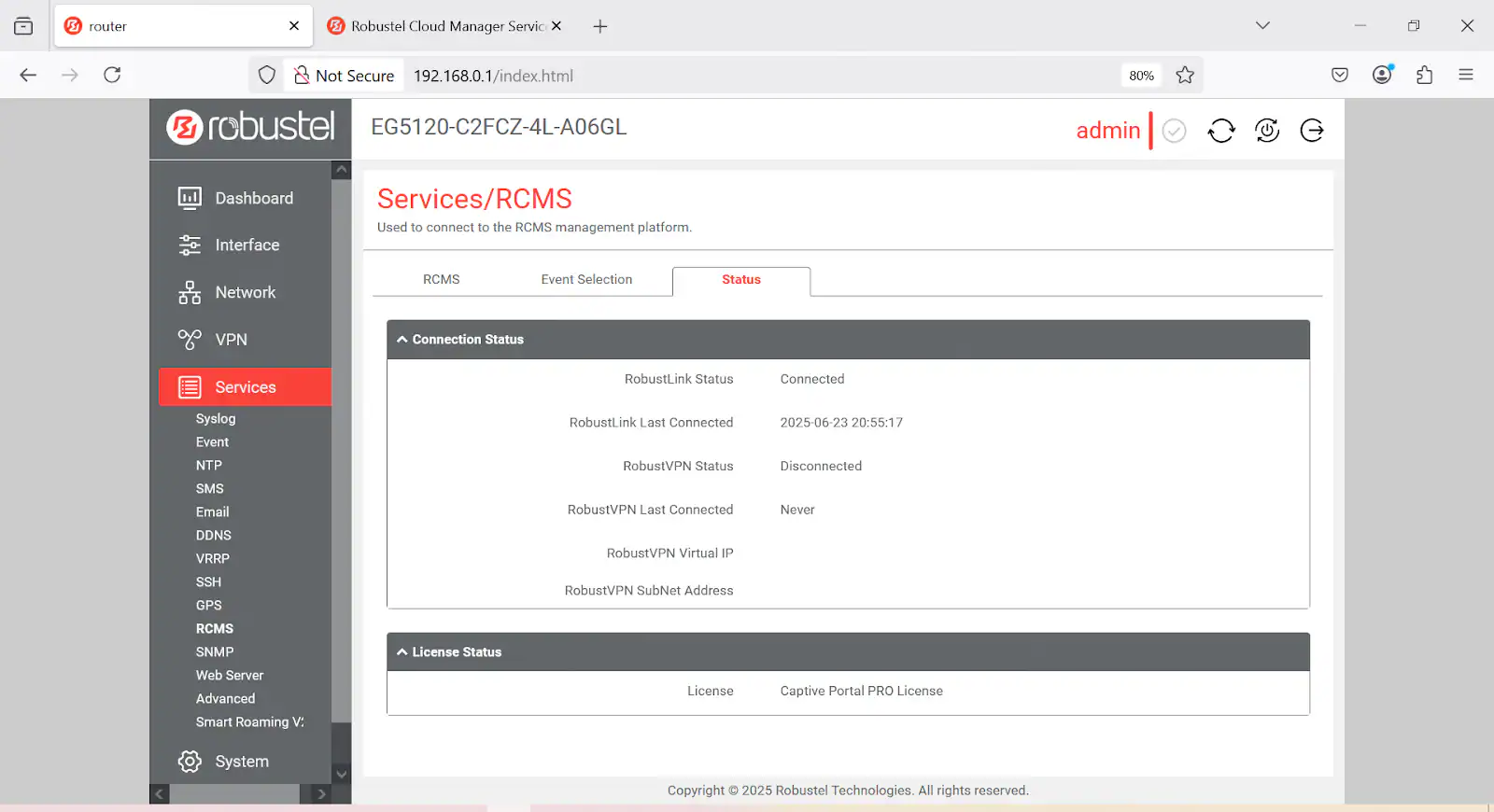
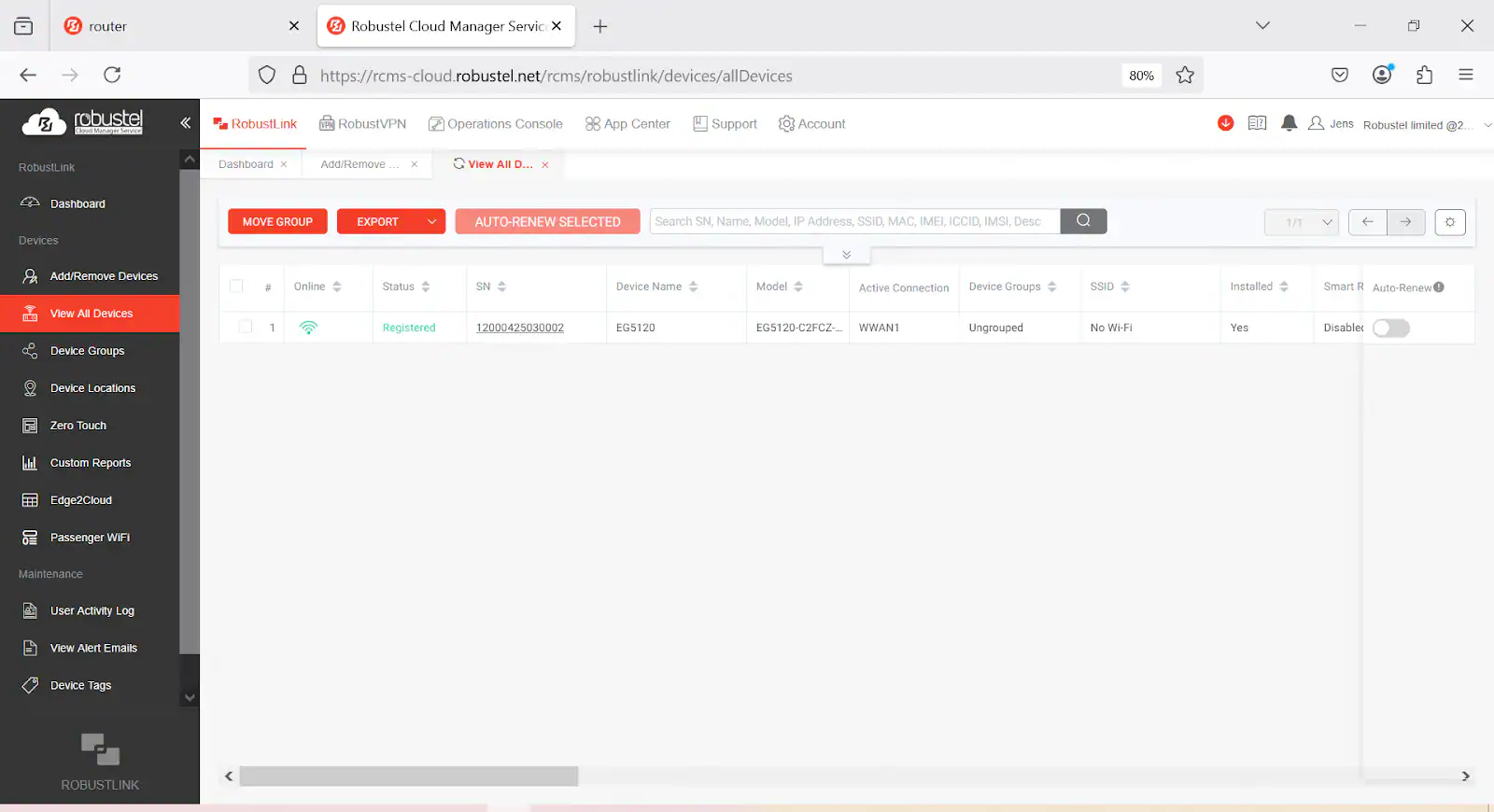
3. Access the EG5120’s web interface (default IP: 192.168.0.1), navigate to the RCMS app , enable it, and ensure the status shows as “Connected.” Meanwhile RCMS status shows as “Registered”.
Step 3: Local Network Configuration
- Connect the PLC to the EG5120’s Ethernet port.
- Ensure that the EG5120 can ping the PLC’s IP address on the local network.
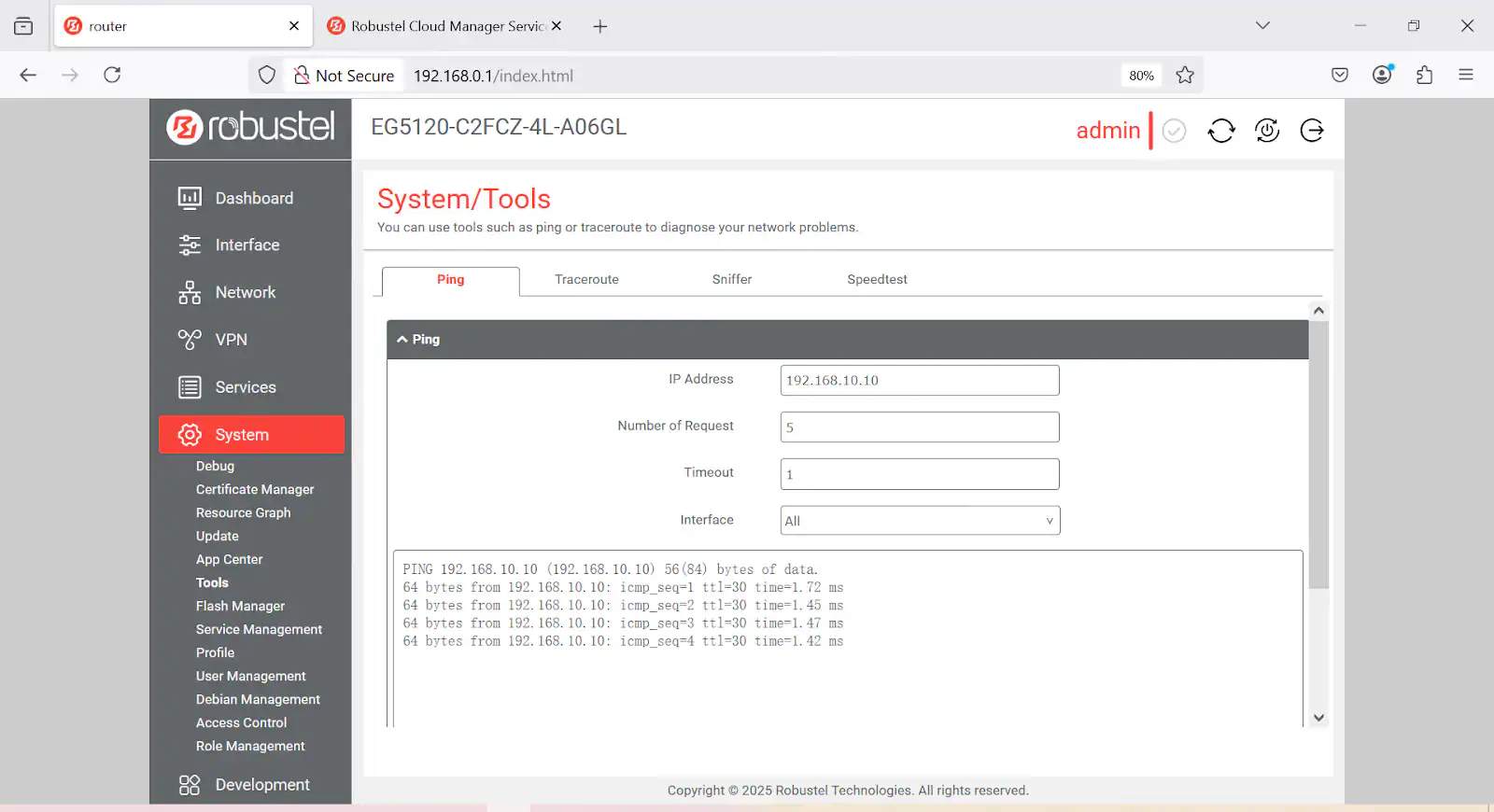
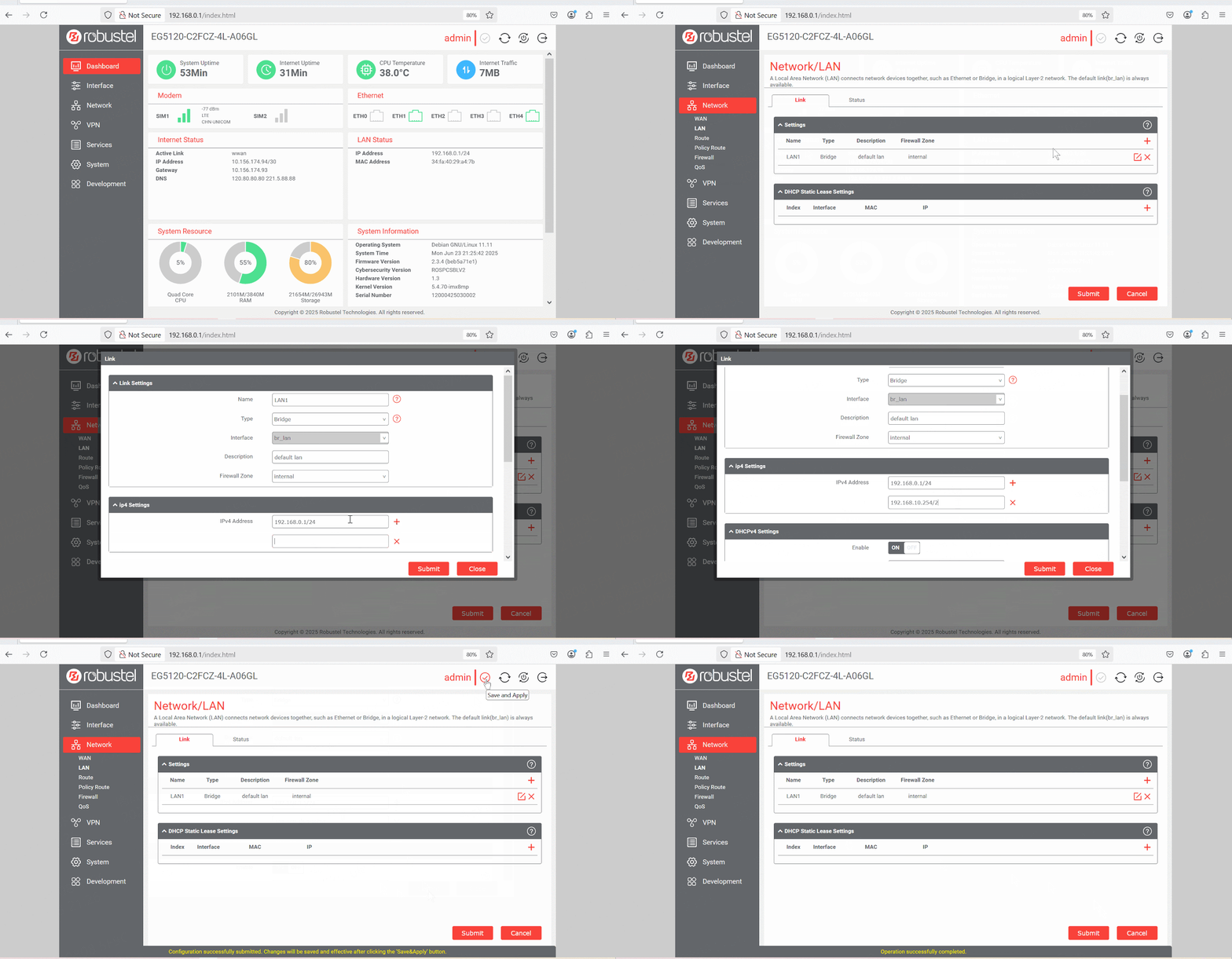
3. Insider Tip: If your PLC is on a different subnet than the gateway’s LAN (e.g., PLC is 192.168.10.10 and gateway is 192.168.0.1), you have two choices: change the PLC’s IP to be on the 192.168.0.x subnet, or simply add a second IP address (192.168.10.254, for example) to the gateway’s LAN interface. The second option is often easier and avoids changing configurations on your OT equipment.
4. Optional: Add SNAT rule. If the PLC does not use the EG5120’s IP as its default gateway, you must add an SNAT rule. You can also add this rule even if you are unsure of the PLC’s gateway IP configuration. The command is as follows:
t nat -A POSTROUTING -d 192.168.10.0/24 -j SNAT --to-source 192.168.10.254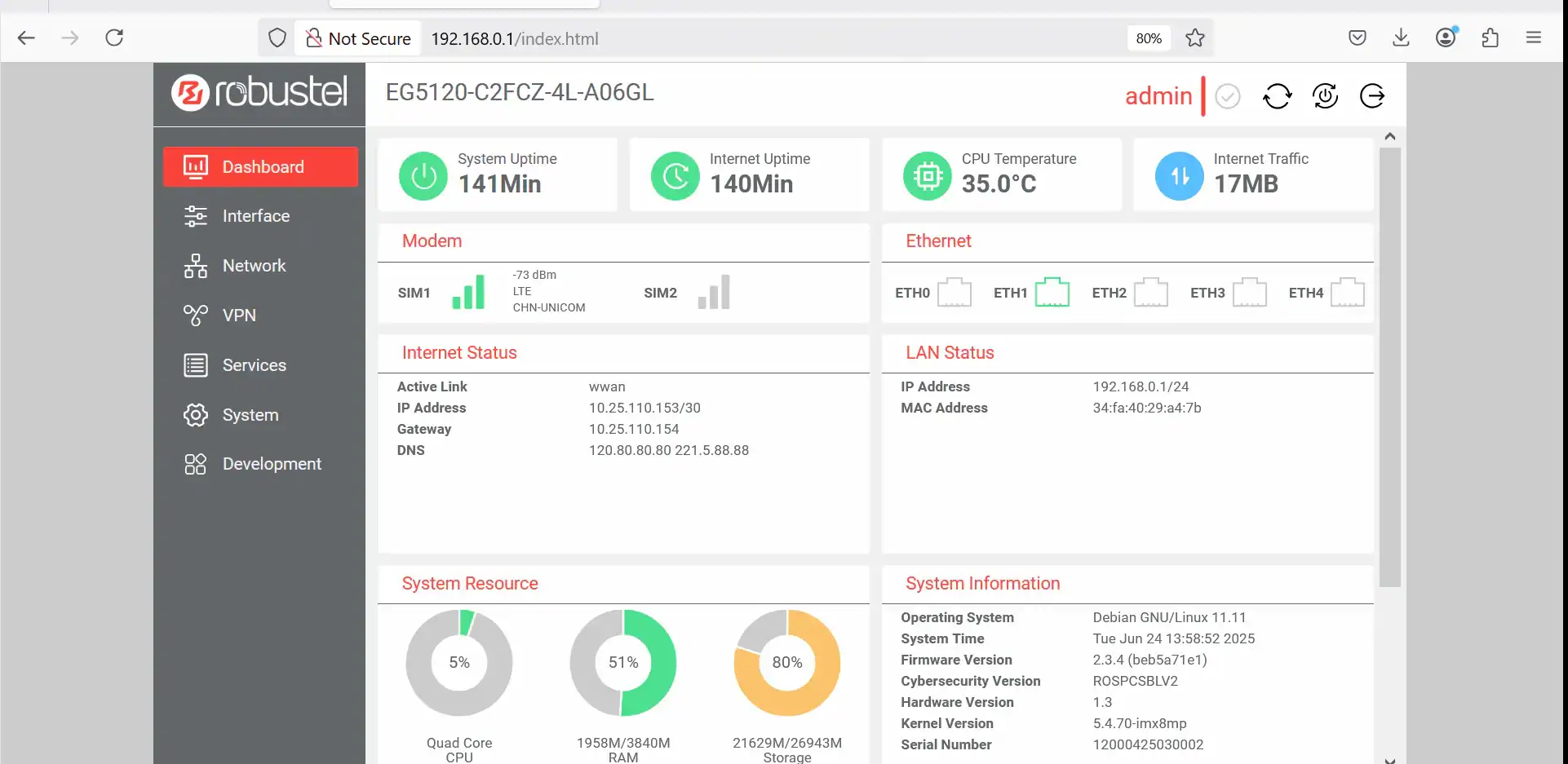
Step 4: Set Up the VPN Group in RCMS
- In RCMS, navigate to the VPN section and create a new VPN group. Add your EG5120 to this group.
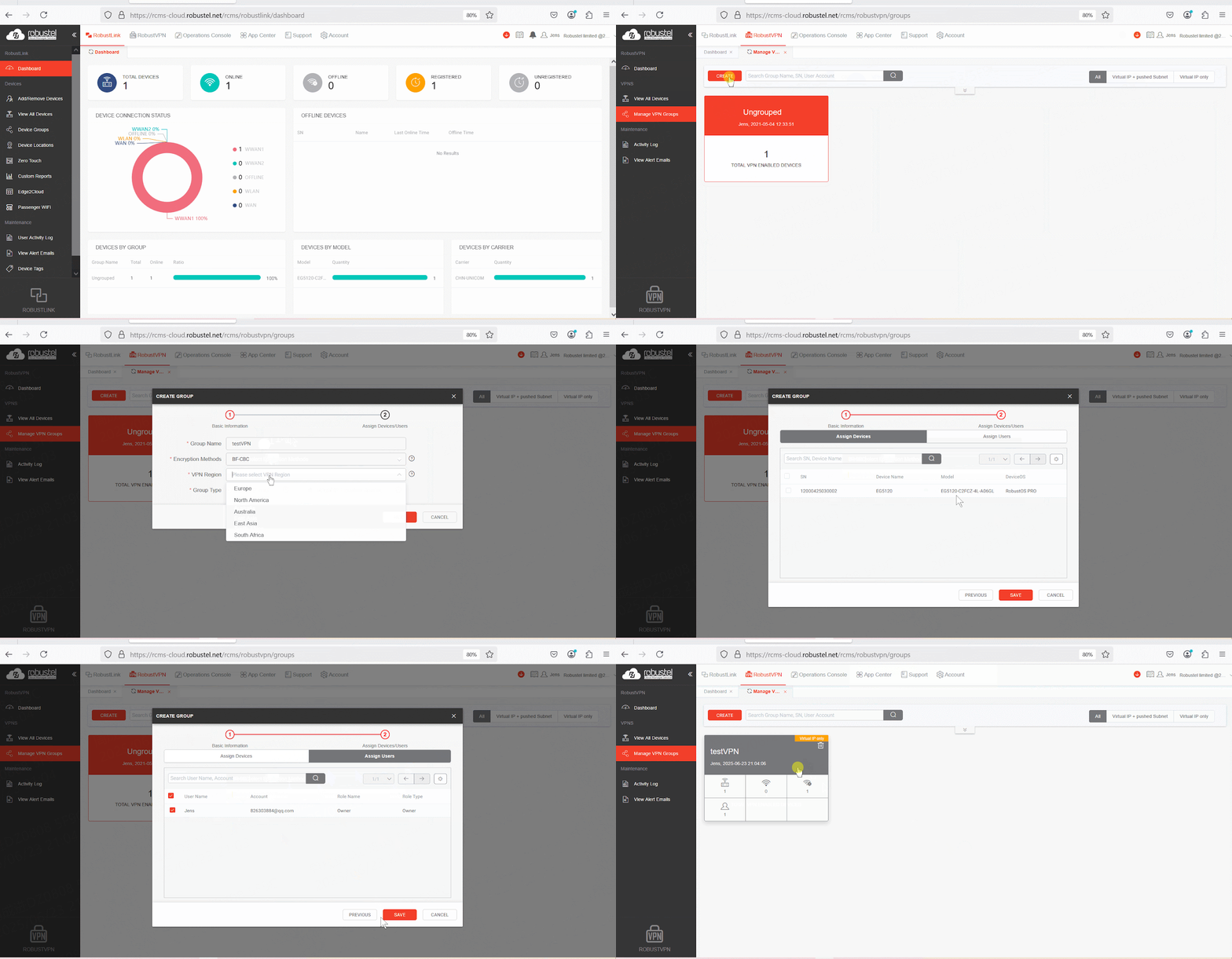
2. Verify VPN status shows Green.
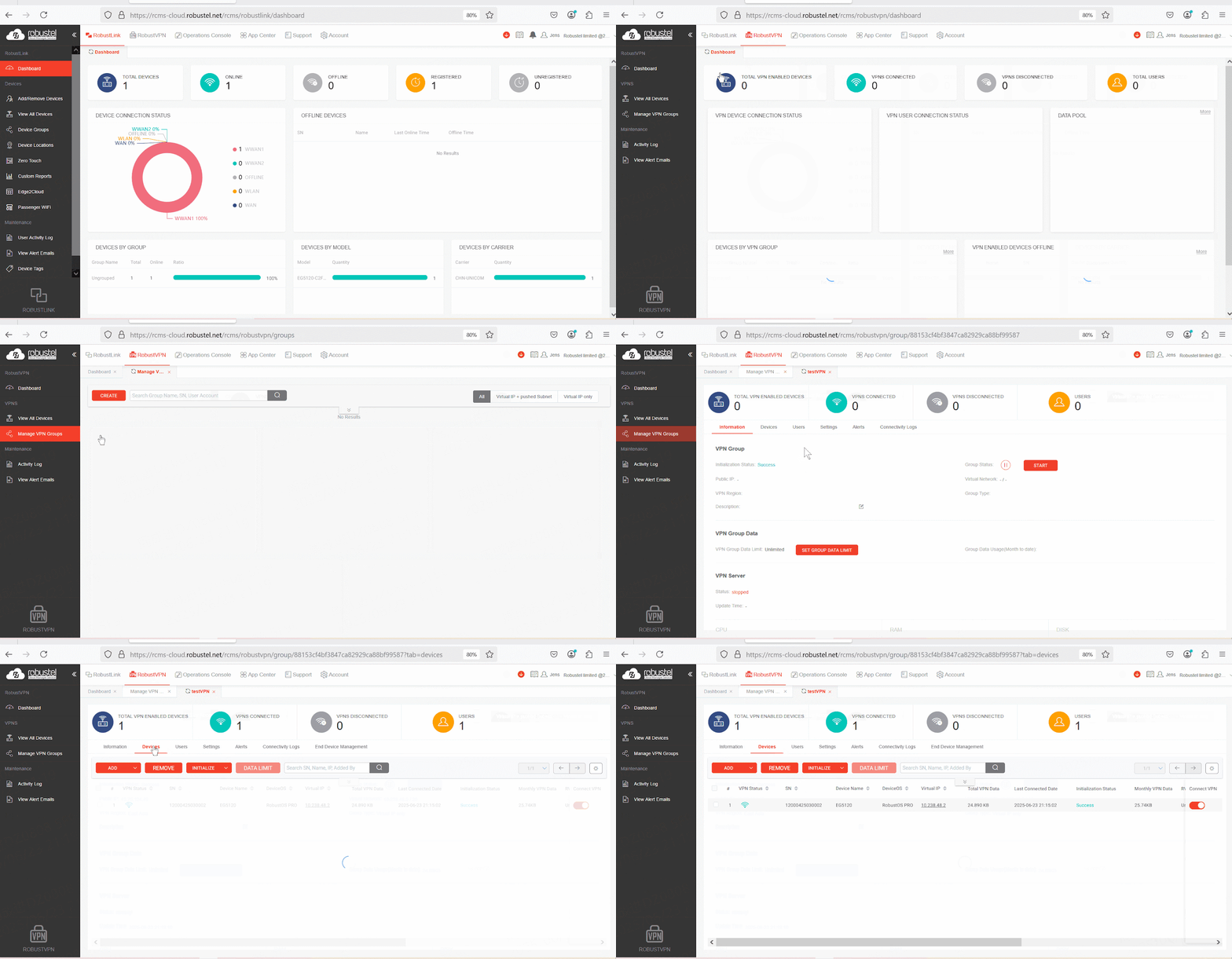
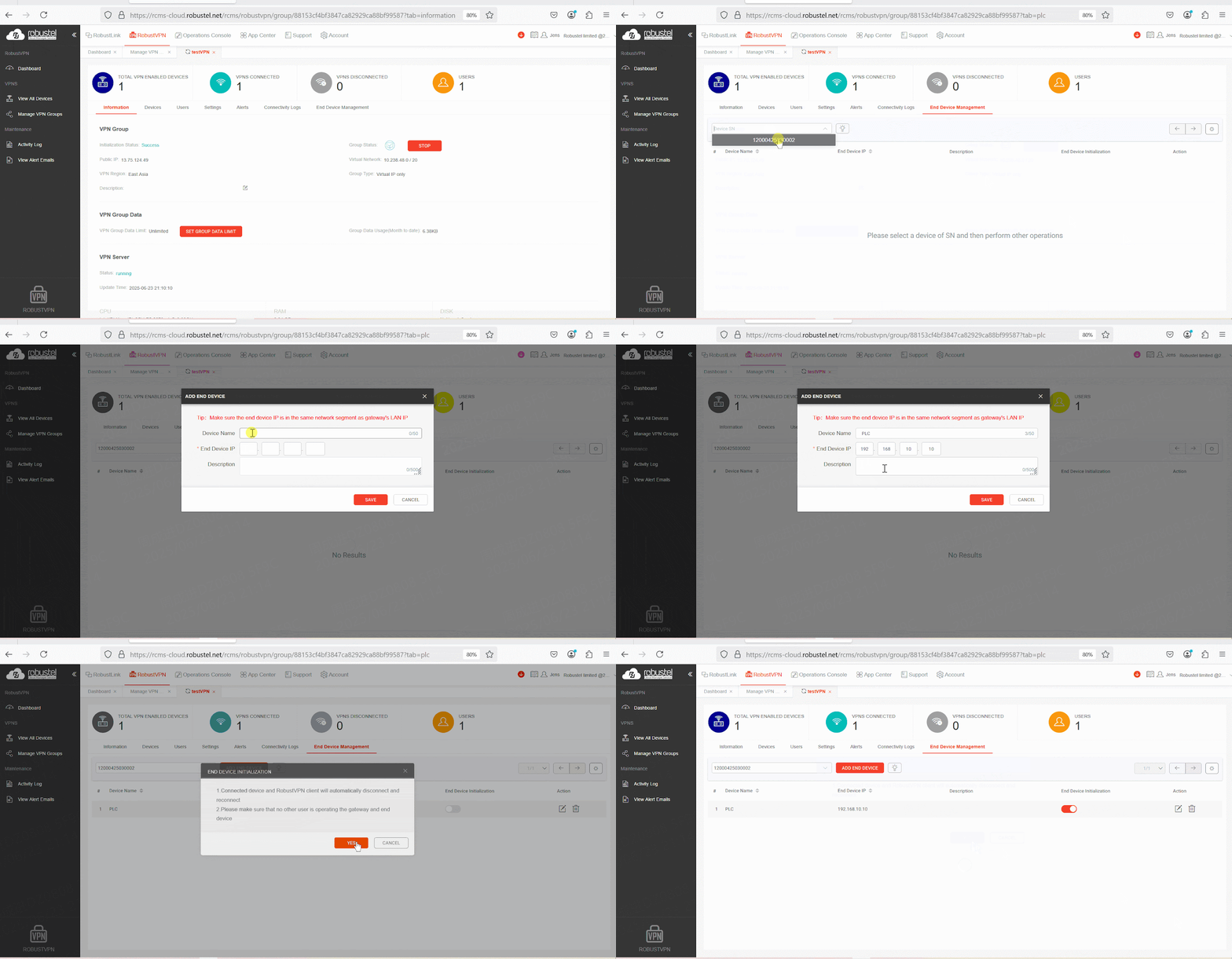
3. In the group’s settings, add the local IP address of your PLC (e.g., 192.168.10.10) to the End Device list. This tells RCMS which device you want to access behind the gateway.
Step 5: Connect to the VPN and Access the PLC
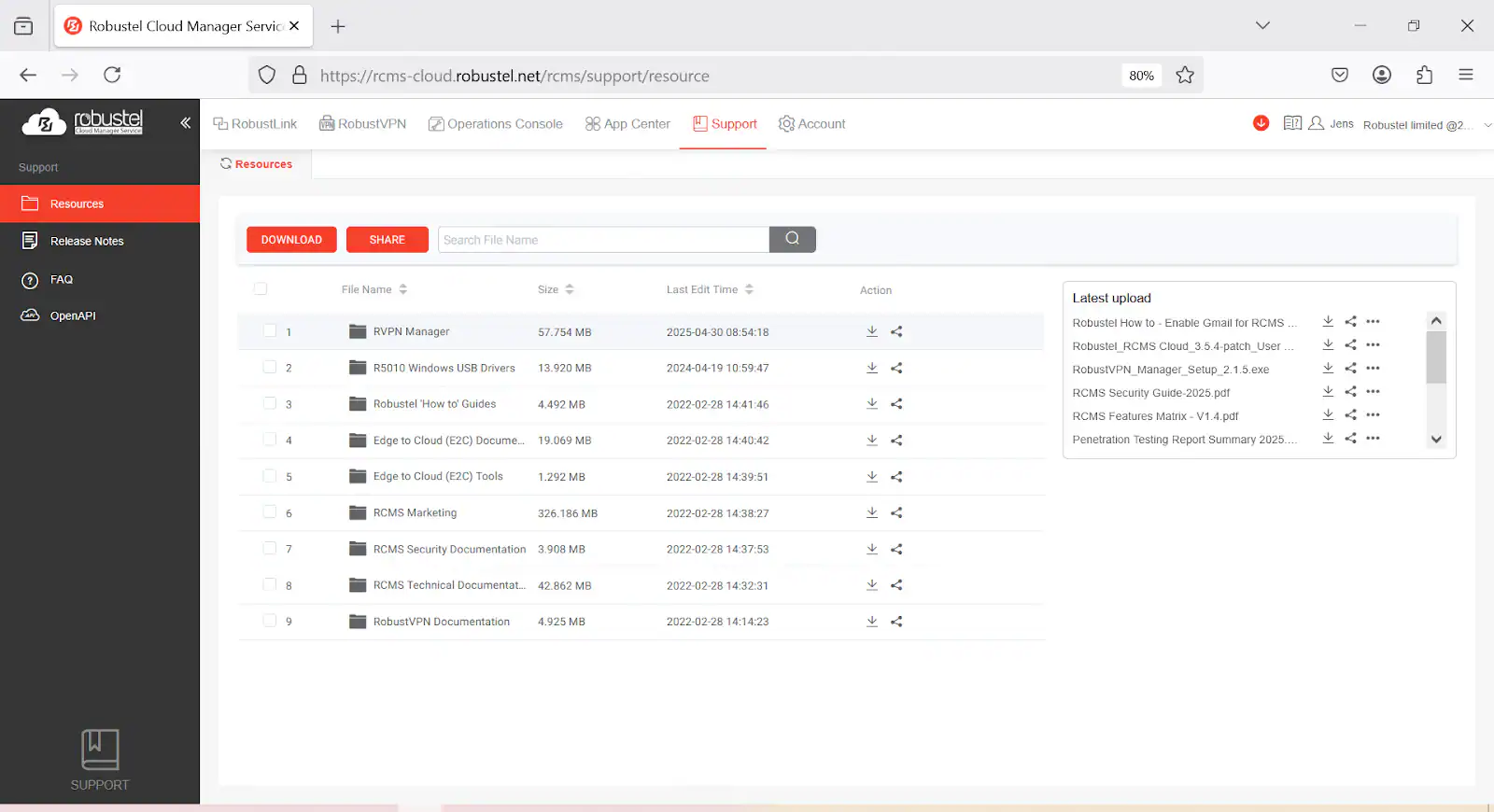
- Download and install the RCMS Client on your Windows PC from the RCMS platform.

2. Log in to the client with your RCMS credentials and click Connect on the VPN group you created. Your PC is now securely connected to the gateway’s remote network.
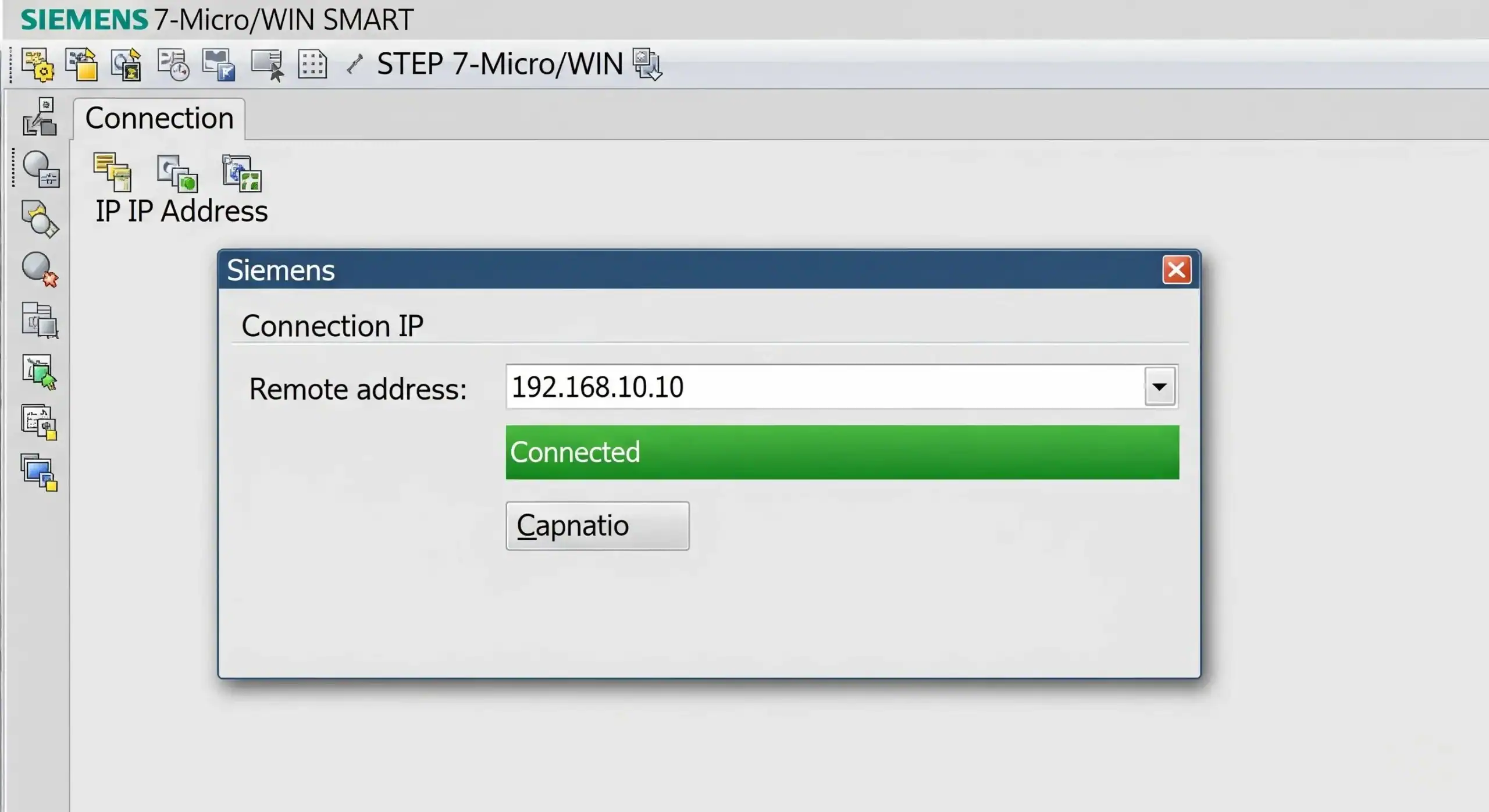
3. Open your Siemens software, and instead of searching for a local PLC, simply enter the PLC’s IP address (192.168.10.10).
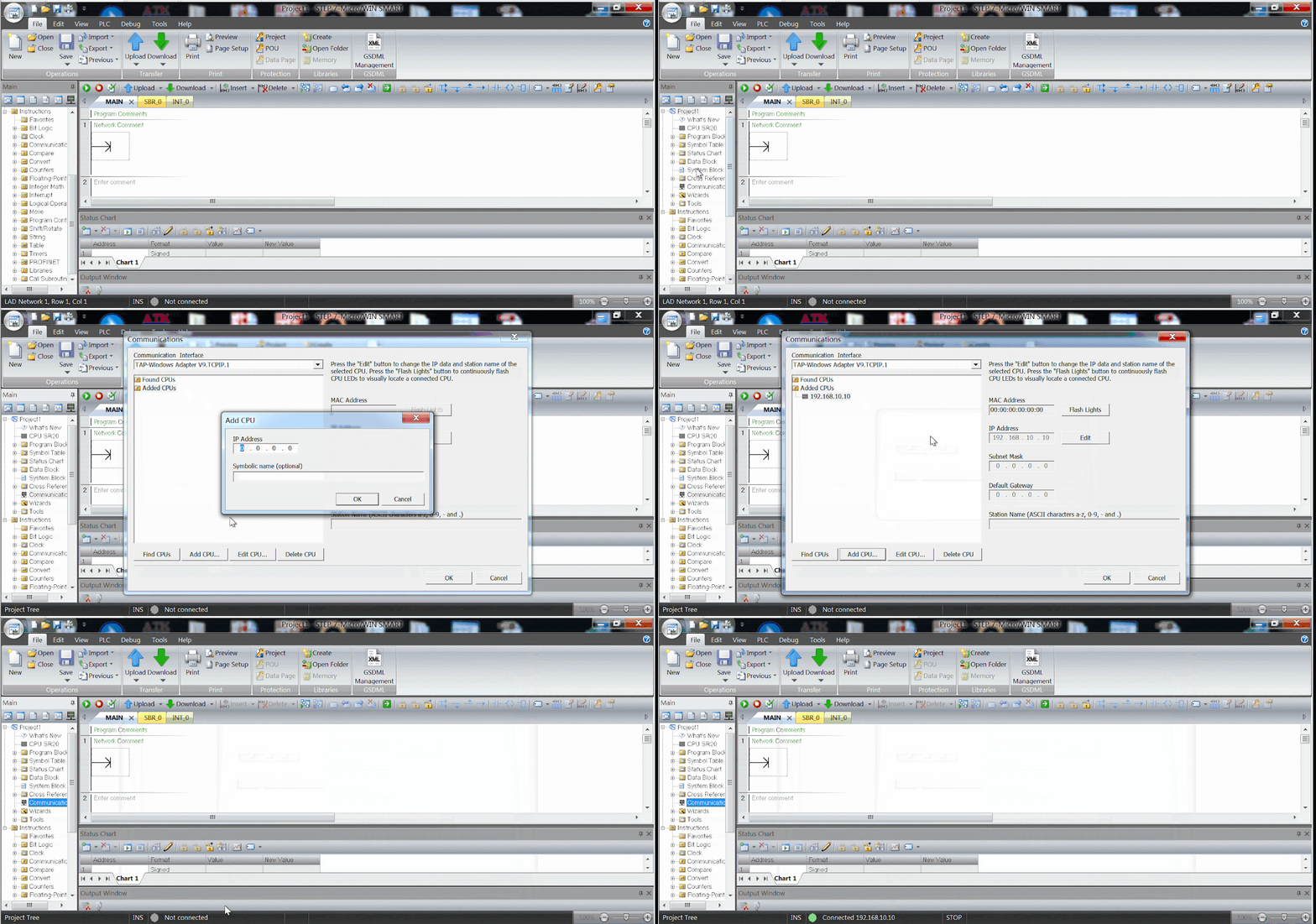
4. You can now connect, upload/download programs, and troubleshoot the PLC as if you were plugged directly into it on-site.
Conclusion: Future-Proofing Your Remote Industrial Operations
You have now successfully established a robust system for secure remote access using the EG5120 gateway and RCMS. By adopting this method—creating a secure, on-demand VPN tunnel directly to your on-site equipment—you are utilizing the professional standard for remote industrial maintenance.
This approach eliminates the immense security risks of exposing your OT network to the public internet, providing the flexibility and efficiency necessary for modern operations without sacrificing safety. Moving away from risky workarounds to this purpose-built solution is a game-changing capability for any industrial enterprise looking to reduce downtime and optimize maintenance costs.
Watch: Discover more about the Robustel EG5120.
Watch: Discover more about the Robustel RCMS.
FAQs
Q1: Is this method for secure remote PLC access safe?
A1: Yes, it is highly secure. The PLC’s IP address is never exposed to the public internet. All communication between your engineering PC and the remote site is fully encrypted within the RCMS VPN tunnel, which is based on industry-standard protocols.
Q2: What if my PLC doesn’t have an Ethernet port?
A2: This is a common challenge. For PLCs with only a serial port (RS232/RS485), you can use the EG5120’s serial ports and its “Transparent TCP/UDP” functionality. This creates a virtual serial port on your PC that tunnels the serial data through the secure VPN, allowing your software to connect as if it were a direct serial cable.
Q3: Is RCMS free to use for this purpose?
A3: Check the latest RCMS plans for details.
About the Author
Jens Zhou | Technical Support Engineer
Jens Zhou is a Technical Support Engineer at Robustel, specializing in industrial IoT and edge gateway applications. He is experienced with the configuration and deployment of EG series devices, and well-versed in network communication, industrial protocols, and common wireless technologies. He is dedicated to providing practical tutorials to help engineers efficiently build smart systems.